Connect an MCP server to your agents
Connect an external MCP server and choose which tools each agent can use during conversations.
An MCP connector gives your agents tools from another system: for example, looking up job openings and applicants in your recruiting software or searching products in your store. The agent uses those tools during conversations, when the customer’s question needs them.
Create the connection
Open MCP Connectors
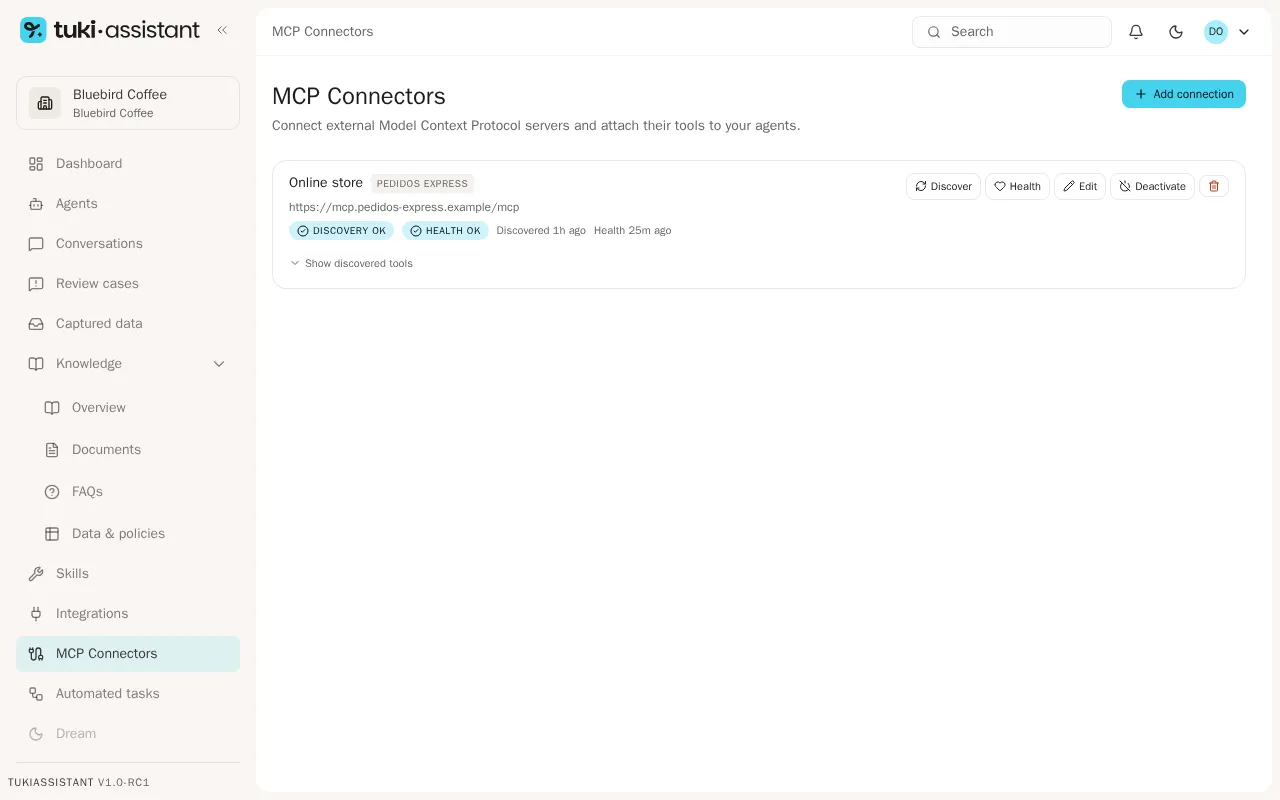
In the workspace side menu, open MCP Connectors.
Add a connection
Click Add connection.
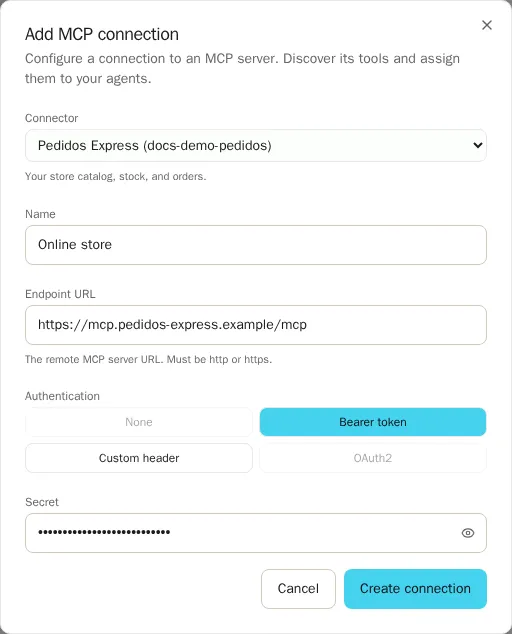
Choose the connector
In Connector, choose the type of server. If the list is empty, ask TukiAssistant support to enable the connector you need.
Name the connection
In Name, enter a name that identifies it, for example “Recruiting”.
Enter the address
In Endpoint URL, paste the MCP server address. Some connectors already fill it in.
Set up authentication
In Authentication, choose what the vendor tells you: Bearer token or Custom header (with its Header name), and paste the credential in Secret. If you choose OAuth2, click Authorize after saving and sign in with the vendor.
Create the connection
Click Create connection.
Discover the tools
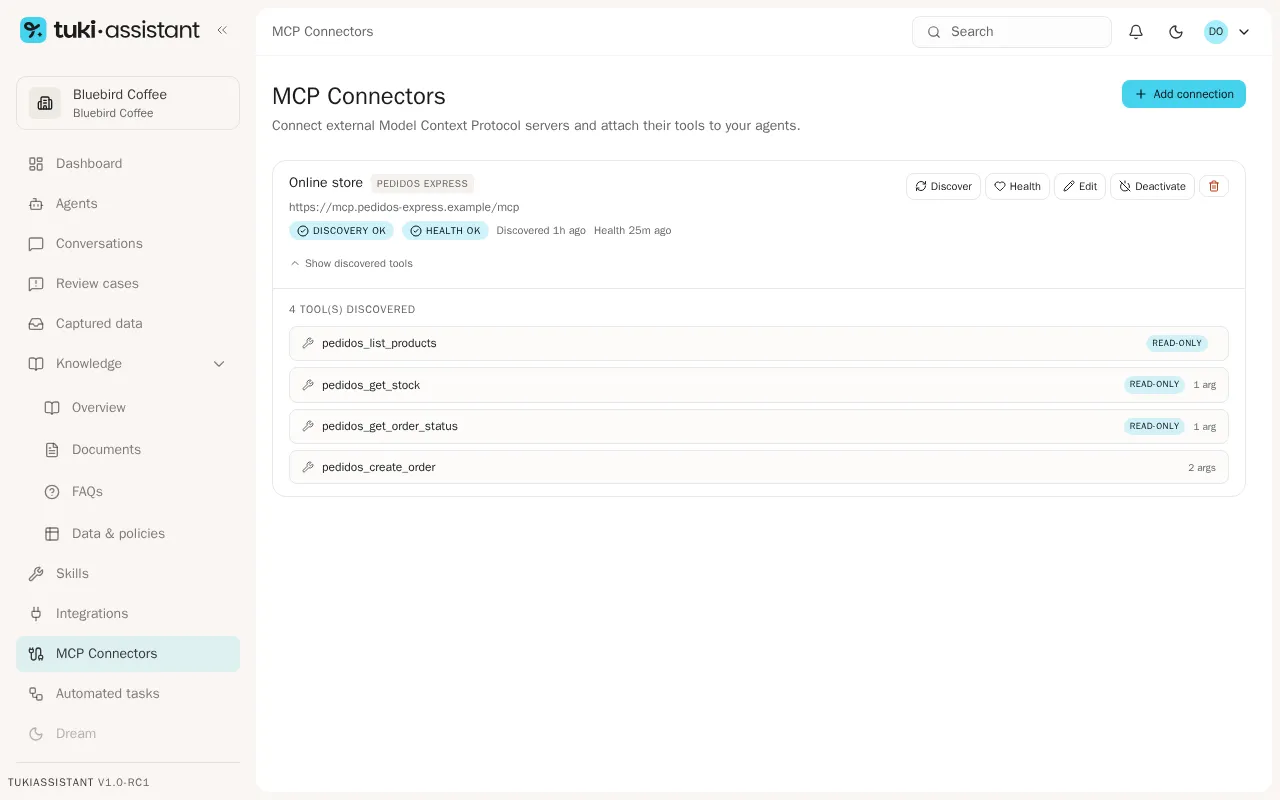
On the connection, click Discover. TukiAssistant reads the tools the server offers; see them with Show discovered tools.
Check that it works
Click Health. If the server answers and its credentials work, the connection shows Health OK. If it fails, the message tells you why, for example a credential the vendor rejected.
Enable the tools on an agent
A connection gives no tools to any agent until you assign them.
Open the agent
Open Agents in the side menu and go into the agent.
Go to Connections
Go to the Connections tab. Under MCP connectors you see the workspace connections.
Choose the tools
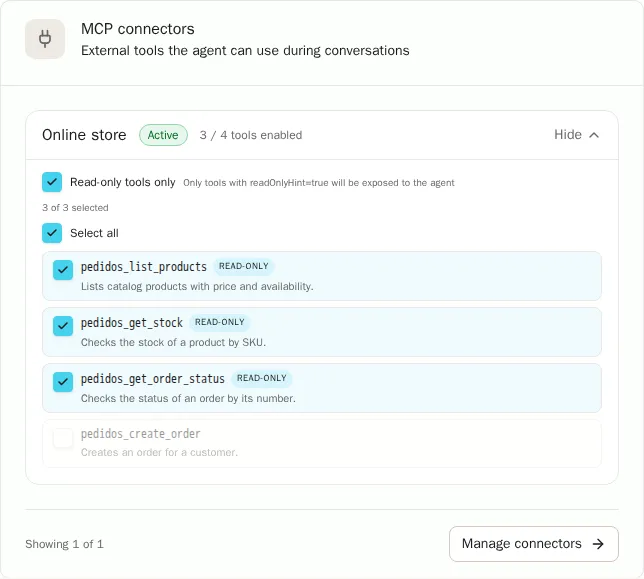
On the connection, click View tools and check the tools the agent can use, or Select all.
Limit to read-only (optional)
Turn on Read-only tools only if the agent should only look up information and never create, change, or delete data in the other system.
Save
Click Save. The agent uses the tools from the next conversation on; you don’t need to publish it again.