

Credits and limits
See how many credits your organization used this period, what they were used for, and what happens at the limit.
TukiAssistant measures usage in credits. Your agents’ replies, document analysis and reading, knowledge indexing, and web page imports use credits. Your plan includes an amount per period, shared across all workspaces in the organization.
Steps
Open billing
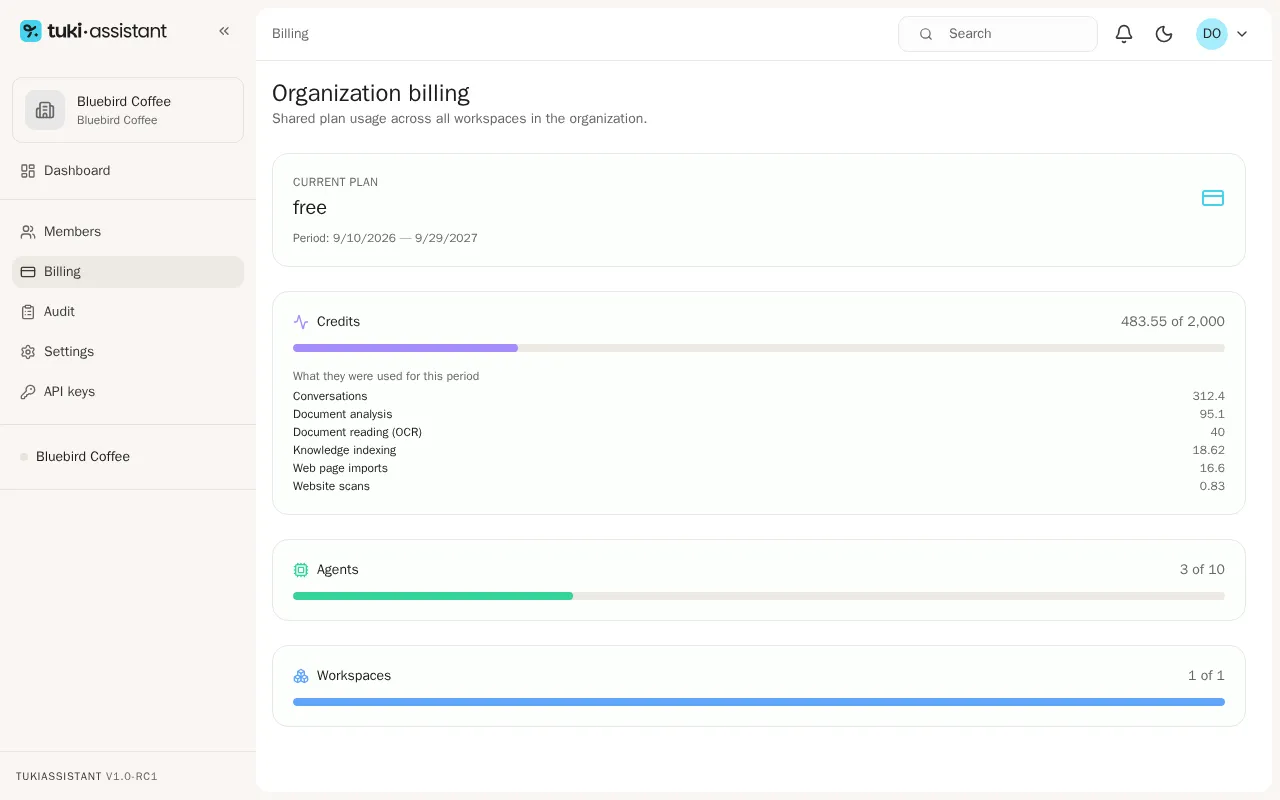
Open your organization and, in the sidebar, go to Billing. Under Current plan you see your plan and the period dates.
Check your credits
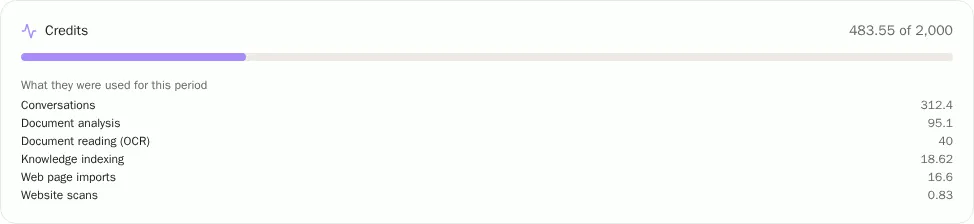
Under Credits you see how many credits you used out of your plan’s total this period.
See what they were used for
Below it, What they were used for this period shows the breakdown: conversations, document analysis, document reading (OCR), knowledge indexing, web page imports, and website scans.
When you get close to the limit
- When you reach 80% of the period’s credits, admins get a notification.
- At 100%, TukiAssistant refuses operations that use credits: your agents don’t answer new questions, and you can’t analyze documents or import web pages.
- Credits renew at the start of each period. Unused credits don’t carry over.
Reading and importing knowledge
Quota is reserved before OCR reading or web-page analysis starts. If there is not enough available quota, that step does not start and the content is not marked as verified. An operation that already consumed resources may count toward usage even if the import later fails; do not retry while usage confirmation is pending.
PDFs that mix text pages and scanned pages, or whose content cannot be extracted completely, are rejected to avoid incomplete knowledge. Separate the text and scanned parts before uploading them. If OCR reading is interrupted, split the file into smaller documents. Web pages with access errors, an unverifiable status, or excessive length are not added as knowledge either.
See your invoices
At the bottom of the billing page, under Invoices, you see each invoice of your subscription with its number, date, period, total, and status. Use View to open it in Stripe or PDF to download it. If an invoice is Due, the Pay button takes you to pay it.
Only the organization owner sees invoices. If your organization never subscribed to a paid plan, the list is empty.