

Getting started: create your workspace and your first agent
Create a workspace and then your first agent in TukiAssistant, step by step.
A workspace groups the agents, knowledge, and conversations of a business or a team. An agent is the assistant that answers your customers in the chat on your site, WhatsApp, Telegram, or other channels.
If you just created your account, registration already created your first workspace with the name you entered in the form. Follow this guide to create another workspace, or if you don’t have an agent yet.
1. Create a workspace
- In the side menu, open the Organization switcher and choose your organization. The console opens with the Workspaces section.

- Click Create workspace.
- Enter the Workspace name.
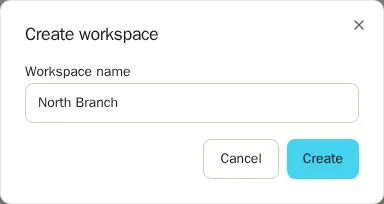
- Click Create. The workspace appears in the list, and you can open it with Open workspace.

2. Create your first agent
- Open the workspace and, in the side menu, go to Agents.
- Click New agent.

- Choose a template or Start from scratch. Templates give you a starting point for the type of agent you want.
- Enter the Agent name.

- Click Continue. The agent’s Initial setup opens.
- Under Essential Questions, answer the questions you can. TukiAssistant generates the questions based on the template and what you write. Use Save and continue to move on, or Answer later to skip a question.
- Under Knowledge base, add the sources your agent will use: documents, FAQs, or structured data. If you don’t have the files yet, use Add later.

When you finish, the agent stays in draft. Review it and publish it when it is ready.